發表文章

目前顯示的是有「Linux應用」標籤的文章

與Shared library(.so)相關的常用指令

1. 印出header readelf -h  會包含系統,例如Linux的64位元class是ELF64、OS/ABI部份寫Unix - GNU 2. 印出so檔案的連結名稱 readelf -a libexample.so | grep SONAME 3. 印出執行檔或so所需的so檔案 readelf -d a.out | grep NEEDED 4. 印出提供/使用到的symbol readelf -Ws libexample.so 也可用 nm libexample.so  如果除掉symbol得so這裡就會寫沒有symbol,印不出來

用OpenSSL/CURL測試伺服器支援SSL/TLS版本

用OpenSSL/CURL測試伺服器支援SSL/TLS版本 OpenSSL測試 顯示當前OpenSSL版本 (Ubuntu 22.04) $ openssl version OpenSSL 3.0.2 15 Mar 2022 (Library: OpenSSL 3.0.2 15 Mar 2022) OpenSSL測試伺服器是否支援加密協定 openssl s_client -connect vlog.xuite.net:443 -tls1  < /dev/null openssl s_client -connect vlog.xuite.net:443 -tls1_1 < /dev/null openssl s_client -connect vlog.xuite.net:443 -tls1_2 < /dev/null openssl s_client -connect vlog.xuite.net:443 -tls1_3 < /dev/null 已無法測試sslv2/sslv3加密協定 openssl s_client -connect vlog.xuite.net:443 -ssl2  < /dev/null openssl s_client -connect vlog.xuite.net:443 -ssl3  < /dev/null 會顯示找不到ssl2/sslv3這個選項 其他 OpenSSL 支援的 cipher 加解密器列表 $ openssl ciphers -V | column -t ref:https://blog.helong.info/blog/2015/01/23/ssl_tls_ciphersuite_intro/ CURL測試 顯示當前CURL版本 (Ubuntu 22.04) $ curl -V curl 7.81.0 (x86_64-pc-linux-gnu) libcurl/7.81.0 OpenSSL/3.0.2 zlib/1.2.11 brotli/1.0.9 zstd/1.4.8 libidn2/2.3.2 libpsl/0.21.0 (+libidn2/2.3.2) libssh/0.9.6/openssl/zlib n...

用ip指令確認路由表(route table) 含IPv6操作

顯示主路由 ip route show ip -6 route show 只要在ip後面加上-6就可確認IPv6的部份 ip route show table local 有時候table表名稱會用號碼, 可以從下面系統設定擋看到 Ubuntu使用/etc/iproute2/rt_tables 其他裝置可能使用 /data/misc/net/rt_tables ip route show table 0 可以看所有的設定 ip指令可縮寫,但是不是所有裝置都支援縮寫,下面舉例 ip r l 等同ip route list ip r s 等同ip route show 查詢特定IP最後走的網路裝置 以IP是193.233.7.82為例 ip route get 193.233.7.82 可縮寫成ip r g 193.233.7.82 193.233.7.82 via 10.129.159.254 dev eth0  table eth0  src 10.129.145.46  uid 0 cache 顯示所有網路地址 ip address show 可縮寫成ip a或ip a s 1: lo: mtu 65536 qdisc noqueue state UNKNOWN group default qlen 1     link/loopback 00:00:00:00:00:00 brd 00:00:00:00:00:00     inet 127.0.0.1/8 scope host lo        valid_lft forever preferred_lft forever     inet6 ::1/128 scope host        valid_lft forever preferred_lft forever 2: eth0: mtu 1500 qdisc pfifo_fast state UP group default qlen 1000     link/ether 0c:f0:b4:1b:0b:2e brd...

筆記:ffmpeg和alsa指令錄音PCM及WAV

因為工作研發及驗證需要整理一下ffmpeg和alsa錄音指令

查看正在佔用Port的程式

因為有時候程式沒寫好所以會需要查一下佔用Port得程式

SSH免密碼登入

Login build server without password # copy your Workstation ssh public k ey to 10.16.10.30 server for pwd-less login # here is your public key, copy it cat ~/.ssh/id_rsa.pub # login server using your id ssh 帳號@10.16.10.30 # past your public key to the authorized_keys file mkdir .ssh;cd .ssh;touch authorized_keys;vi authorized_keys #  Finally, test the pwd-less ssh login.   reconnect it ssh 帳號@10.16.10.30 from  https://help.github.com/articles/generating-ssh-keys/ https://blog.longwin.com.tw/2005/12/ssh_keygen_no_passwd/

設定Linux伺服器不能Ping

設定Linux伺服器不能Ping ping其實就是用icmp封包完成的 系統節點 /proc/sys/net/ipv4/icmp_echo_ignore_all 用bash設定 $ echo 1 | sudo tee /proc/sys/net/ipv4/icmp_echo_ignore_all 1 用sysctl設定 $ sysctl net.ipv4.icmp_echo_ignore_all 1 上述方法都是暫時性的, 如果系統要在開機時套用,請把設定寫在 /etc/sysctl.conf net.ipv4.icmp_echo_ignore_all=1 Ref: http://ubuntuhandbook.org/index.php/2013/07/disable-ping-response-ubuntu-server/

筆記:gdb debug指令概要

1. b/break設定中斷點 1.1 針對function名稱設定中斷點b func_name gdb內可以用TAB的auto completion,預設最多顯示200筆資料 (gdb) b avpriv_mpegts avpriv_mpegts_parse_close   avpriv_mpegts_parse_open    avpriv_mpegts_parse_packet (gdb) b avpriv_mpegts_parse_packet Breakpoint 1 at 0x749540: file libavformat/mpegts.c, line 3369. 1.2 針對特定source code行數設定中斷點b file_name:line_num (gdb) b libavformat/mpegts.c:3163 Breakpoint 2 at 0x7451a7: file libavformat/mpegts.c, line 3163. 1.3 針對目前source code設定中斷點b line_num (gdb) b 300 Breakpoint 2 at 0x4971a7: file fftools/ffprobe.c, line 300. 如果你還沒有執行程式,b 300的意思是設定main程式所在檔案的第300行 例如ffprobe的main程式在fftools/ffprobe.c, 就會設定在ffprobe.c的300行 1.4 針對當前位置設定中斷點 b (gdb) b 1.5 顯示中斷點i b/info break (gdb) i b Num     Type           Disp Enb Address            What 1       breakpoint     keep y   0x0000000000749540 in avpriv_mpegts_parse_p...

筆記:app當機時用gdb遠端debug

參考來源: Debugging apps or processes that crash https://source.android.com/devices/tech/debug/gdb 1. 在目標裝置上設置debug.debuggerd.wait_for_gdb Android 7之後可以使用內建功能, 首先設置debuggerd的property $ adb shell setprop debug.debuggerd.wait_for_gdb true 2. 模擬APP當機 使用ps確定測試用APP是com.myapp.test $ adb shell "ps | grep com.myapp.test" 產生SIGABRT信號模擬APP當機 $ adb shell kill -6 2823 從adb logcat中可以看到下面一段debuggerd印出的dump資訊, 有看到下面 藍色部份 就是表示系統已正在等待gdb連線 --------- beginning of crash 02-13 15:45:52.820  2823  2823 F libc    : Fatal signal 6 (SIGABRT), code 0 in tid 2823 (ht.mod.watchdog) 02-13 15:45:52.821  1650  1650 W         : debuggerd: handling request: pid=2823 uid=1000 gid=1000 tid=2823 02-13 15:45:52.923  3190  3190 F DEBUG   : *** *** *** *** *** *** *** *** *** *** *** *** *** *** *** *** 02-13 15:45:52.924  3190  3190 F DEBUG   : Build fingerprint: '...:user/release-keys' 02-13 15:45:52.924  3...

筆記:gdb透過網路debug目標裝置

1. 於目標裝置置入gdbserver 以AOSP為例, 在prebuilts目錄下有已經編譯好的gdbserver版本(64-bit要找gdbserver64), $ find -name gdbserver prebuilts/misc/android-arm/gdbserver prebuilts/misc/android-arm/gdbserver/gdbserver ... 我手邊裝置是arm,從本機用adb push把gdbserver置入目標裝置中即可 adb push prebuilts/misc/android-arm/gdbserver/gdbserver /system/bin/ 如果push不上去,應該是read-only狀態,需要先adb remount後再adb push上去 2. 啟動目標裝置上的gdbserver 啟動gdbserver有兩種不太一樣的debug模式如下: Debug情境1. debug已在跑的Process 例如:假設已用ps確認要debug已在跑的程式recorder之PID為2947。 # ps | grep recorder root      2947  2939  40352  11380 hrtimer_na b2656f50 S recorder 在目標裝置上執行gdbserver在port 9999等待gdb連線,並附掛上指定PID為2947之程式 # gdbserver :9999 --attach 2947 Attached; pid = 2947 Listening on port 9999 Debug情境2. 從啟動程式開始debug 例如:在目標裝置上用gdbserver直接啟動待debug的程式recorder,並帶入啟動參數http://www.google.com, 在port 9999等待gdb連線近來 # gdbserver :9999 recorder http://www.google.com Process recorder created; pid = 3039 Listening on port 9999 注意:程式啟動參數無法從本機電腦端(gd...

筆記:gdb 執行/帶參數/停止/顯示help

執行gdb 第一個參數ffprobe_g是待會要debug的程式。 $ gdb ffprobe_g GNU gdb (Ubuntu 7.11.1-0ubuntu1~16.5) 7.11.1 ... Type "apropos word" to search for commands related to "word"... Reading symbols from ffprobe_g...done. (gdb) 如果該程式有symbol在內,會顯示上面 藍色標示 字串,  如果要debug應該要載入symbol。 如果你的程式已經strip過,可能就沒有symbol可以參考,需要編譯成沒有strip 這裡也可以不指定第1參數,之後再指定, 請跳到"載入/改變執行程式"部份。 顯示子指令i/info (gdb) i List of info subcommands: info address -- Describe where symbol SYM is stored info all-registers -- List of all registers and their contents info args -- Argument variables of current stack frame .... 顯示說明h/help (gdb) help List of classes of commands: aliases -- Aliases of other commands breakpoints -- Making program stop at certain points data -- Examining data .... 針對特定指令顯示說明 (gdb) h help Print list of commands. (gdb) h run Start debugged program.  You may specify arguments to give it. Args may include "*", or "[...]"; they are expanded usi...

筆記:netstat指令

顯示路由表 netstat -r 顯示網路裝置設定 netstat -i netstat -an # netstat -antp|wc -l # 檢測本機使用的port netstat -an | grep LISTEN | grep ":21" # ftp netstat -an | grep LISTEN | grep ":22" # ssh netstat -an | grep LISTEN | grep ":25"  # smtp mail service netstat -an | grep LISTEN | grep ":25"  # pop3 mail service netstat -an | grep LISTEN | grep ":80" # www netstat -an | grep LISTEN | grep ":8080" 計算每一個 ip 在主機上建立的連線數量 netstat -ntu | awk ‘{print $5}’ | cut -d: -f1 | sort | uniq -c | sort -n 列出從 TCP 或 UDP 連線到主機的 ip 的數量 netstat -anp |grep ‘tcp\|udp’ | awk ‘{print $5}’ | cut -d: -f1 | sort | uniq -c | sort -n 列出每個 ip 建立的 port 80 連線數量 netstat -plan|grep :80|awk {’print $5′}|cut -d: -f 1|sort|uniq -c|sort -nk 1 列出連線的協定及使用的應用程式 netstat -alp 列出完整的 URL 位址 netstat -tup -W 這個指令可以驗證 MySQL 是否是透過 UNIX domain socket 連線 netstat -lx | grep -i sql 參考資料 http://aries.dyu.edu.tw/~tarng/dyu_c.c/netstat.htm https://www.php...

用VLC打廣播封包

cvlc h264_test.mpg :file-caching=300 --loop --sout udp:224.1.2.4:1234

設定Ubuntu使用IGMPv2及解決收不到IGMP封包問題

設定Ubuntu使用IGMPv2 因為Ubuntu要修改force_igmp_version內容需要用sudo提升權限,所以像下面這行指令直接在echo前面打sudo在前面是沒用的,因為檔案輸出還是本身權限 sudo echo 2 > /proc/sys/net/ipv4/conf/${YOUR_NETWORK_DEVICE}/force_igmp_version 使用sudo指令來修改可用下面兩種 方法1. 用tee指令 echo 2 | sudo tee /proc/sys/net/ipv4/conf/${YOUR_NETWORK_DEVICE}/force_igmp_version 方法2. 用sh指令設置 sudo sh -c "echo 2 > /proc/sys/net/ipv4/conf/${YOUR_NETWORK_DEVICE}/force_igmp_version" 方法3. 用sysctl設定 sudo sysctl net.ipv4.conf.${YOUR_NETWORK_DEVICE}.force_igmp_version=2 上面都是針對單一網路裝置, 另外也有對全系統網路裝置的設定 sudo sysctl net.ipv4.conf.all.force_igmp_version=2 上述三種方法都是暫時性的, 如果系統要在開機時套用,請把設定寫在 /etc/sysctl.conf 解決收不到IGMP封包的問題 此外,網路上有些解法是會建議要設定rp_filter為0,讓封包不會被過濾。我個人的經驗是主要還是force_igmp_version有全域跟網卡自己的要先釐清是否有改好,再來看rp_filter。 sudo sysctl net.ipv4.conf.${YOUR_NETWORK_DEVICE}.rp_filter=0 以上設定如果要開機時套用,請把設定寫在 /etc/sysctl.conf

strace追蹤程式使用的system call

圖片
追蹤指令使用的system call strace cat /dev/null -t 追蹤輸出加入時間資訊, 時:分:秒 -tt 使用時:分:秒.微秒資訊, 例如11:22:33.123456 -ttt 使用timestamp微秒數值 -r 顯示相對時間 -T 顯示耗用時間 -o {Output file path} 輸出到檔案, 如果不使用-o 也可以用重導向stderr 2>{Output file path}  -c 統計呼叫的次數與錯誤 -x 以十六進位輸出含有不可印的字串 -xx 所有字串以十六進位輸出 -s {length} 輸出字串時最多印出的字數, 超過就會在後面加上...表示大於長度 -v 輸出所有的系統呼叫, 因為會太多資訊所以一般會使用-e指定要追蹤的類型 -f 追蹤fork -ff 追蹤fork, 如果有-o選項的話, fork的pid會輸出到{Output file path}.{pid} -F 追蹤vfork -u {username} 以特定使用者執行程式並追蹤 追蹤已啟動的process運作 strace -p {ProcessID} 追蹤特定的system call 像是可以用-eopen來追蹤loader載入的library strace -eopen -f ./test 或是追蹤gcc的運作 strace -eopen -f gcc test.c -o test -e 的語法是 -e [qualifier=][!]value1[,value2]... qualifier的選項有trace,abbrev,verbose,raw,signal,read,write,預設不寫是用trace, 所以上面的指令用-eopen等於是-e trace=open !表示不包含/排除 value的選項通常有open,close,rean,write,all,none, trace本身有額外的value可用, file,procee,Network,signal,ipc signal有其他的用法, 像是要排除signal SIGIO的部分, 可以寫-e signal=!SIGIO 實際使用...

抓取網路裝置名稱

圖片

抓取系統Memory大小

圖片

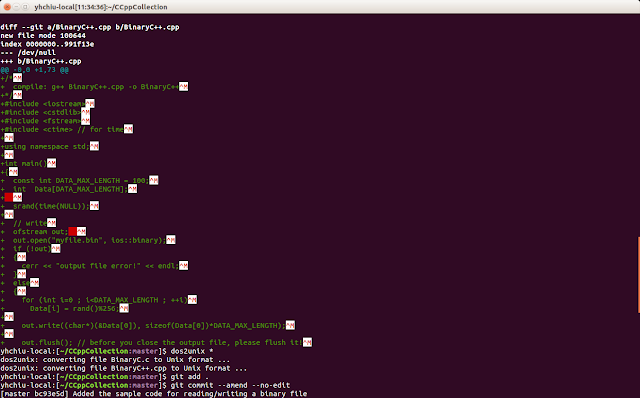
一張圖說明dos2unix指令功能

圖片

掃描自身所有的port是否可以連接

掃描自身所有的port是否可以連接 netcat -z -n -v localhost 1-65535 2>&1 | grep succeeded 來源:https://www.digitalocean.com/community/tutorials/how-to-use-netcat-to-establish-and-test-tcp-and-udp-connections-on-a-vps

網路MTU測試

圖片
參考 tp-link官網上 的搜尋網路最佳MTU教學 1. Windows使用 ping {某個可以ping的網站} -f -l {要測試的封包大小} -f 是設定IP層的do not fragment旗標 -l 是設定ICMP的封包大小 像是我測試出來的封包大小可以到1472,再加上ip header大小28,就是我的網路最佳MTU設定1500(=1472+28) 看網路介面卡目前的MTU設定用 netsh interface ipv4 show interface 設定網路介面卡的MTU是用下面的指令 netsh interface ipv4 set subinterface {用上個指令看到的網路介面卡名稱,例如我的是"乙太網路"} mtu={上面測試出來的MTU值} store=persistent netsh指令請參考: http://www.james-tw.com/windows/windows-netsh-zhi-ling-cao-zuo 2. Linux上可用 ping {某個可以ping的網站} -s {要測試的封包大小} -M do -s是設定ICMP的封包大小 -M do一樣是設定do not fragment旗標 測試的封包大小也是一樣要加上28才是MTU最佳設定  看網路介面卡的設定則是用 ifconfig -a 或者是 ifconfig {你的介面卡名稱} 裡面就會有MTU的數值 設定網路介面卡的MTU值 ifconfig {你的介面卡名稱,例如eth0} mtu {上面測試出來的MTU數值} ifconfig指令請參考鳥哥網站 http://linux.vbird.org/linux_server/0140networkcommand.php